Live Sync
Live Sync turns a video call into a shared interactive experience. The device user can invite a partner to a private live session with a single secure link, then connect through live video and audio while Pulsar synchronizes device motion in real time.
As both sides talk, move, and interact, Pulsar's AI interprets visual cues and transforms them into adaptive motion commands. Instead of replaying fixed patterns, Live Sync responds dynamically to the interaction happening on screen, making each session feel natural, personal, and unique.
How Live Sync Works
1. Start a Private Live Session
Enter Live Sync after the device connects, then create a private invitation. Pulsar generates a secure link that can be sent to a partner.
No app installation is required for the invited partner.
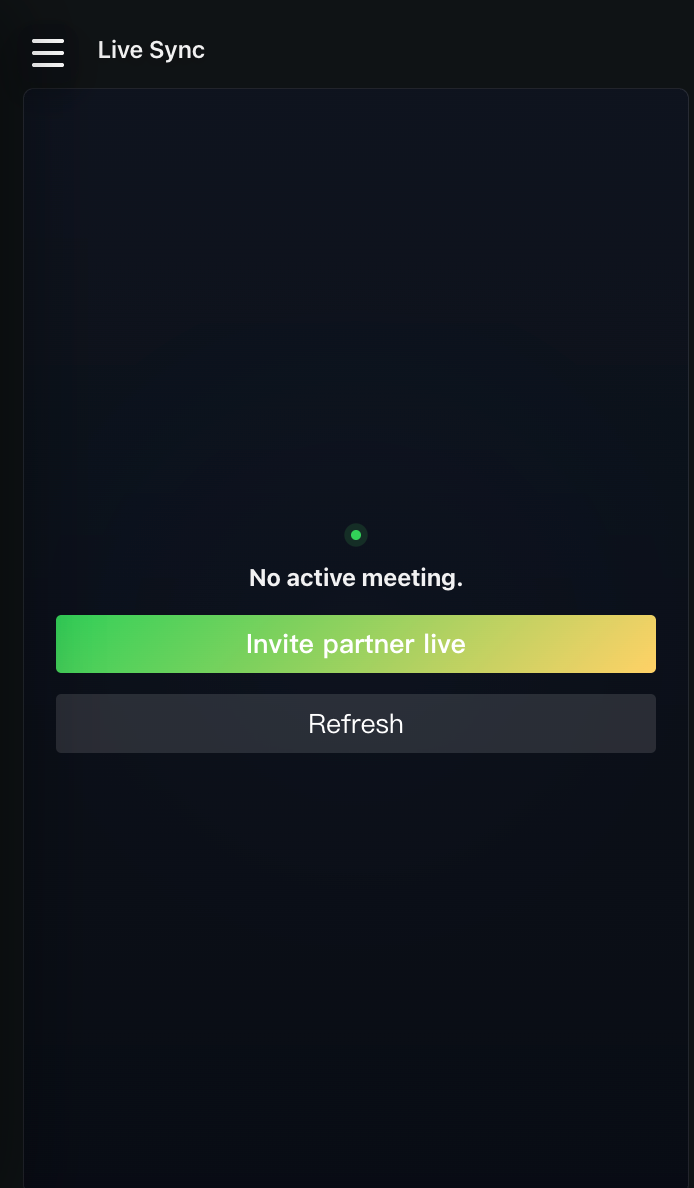
2. Invite the Partner
The partner opens the invitation link, responds to the invitation, and starts the live video session.
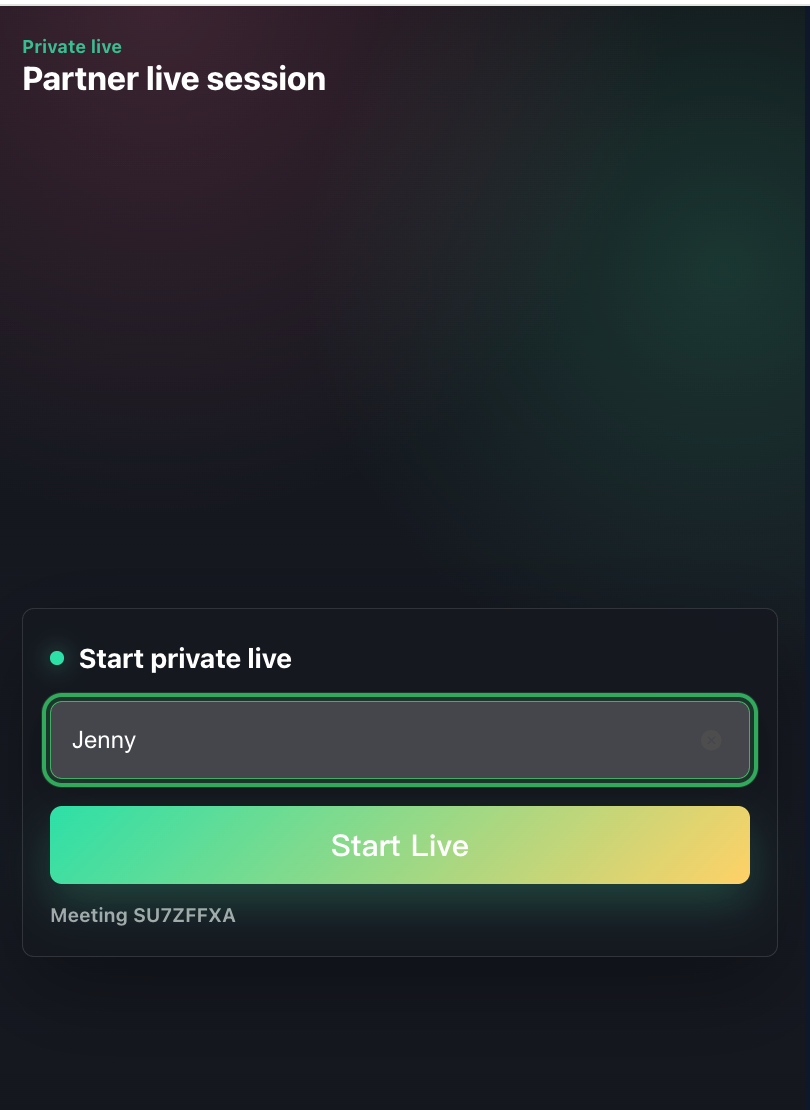
3. Enable Motion Control
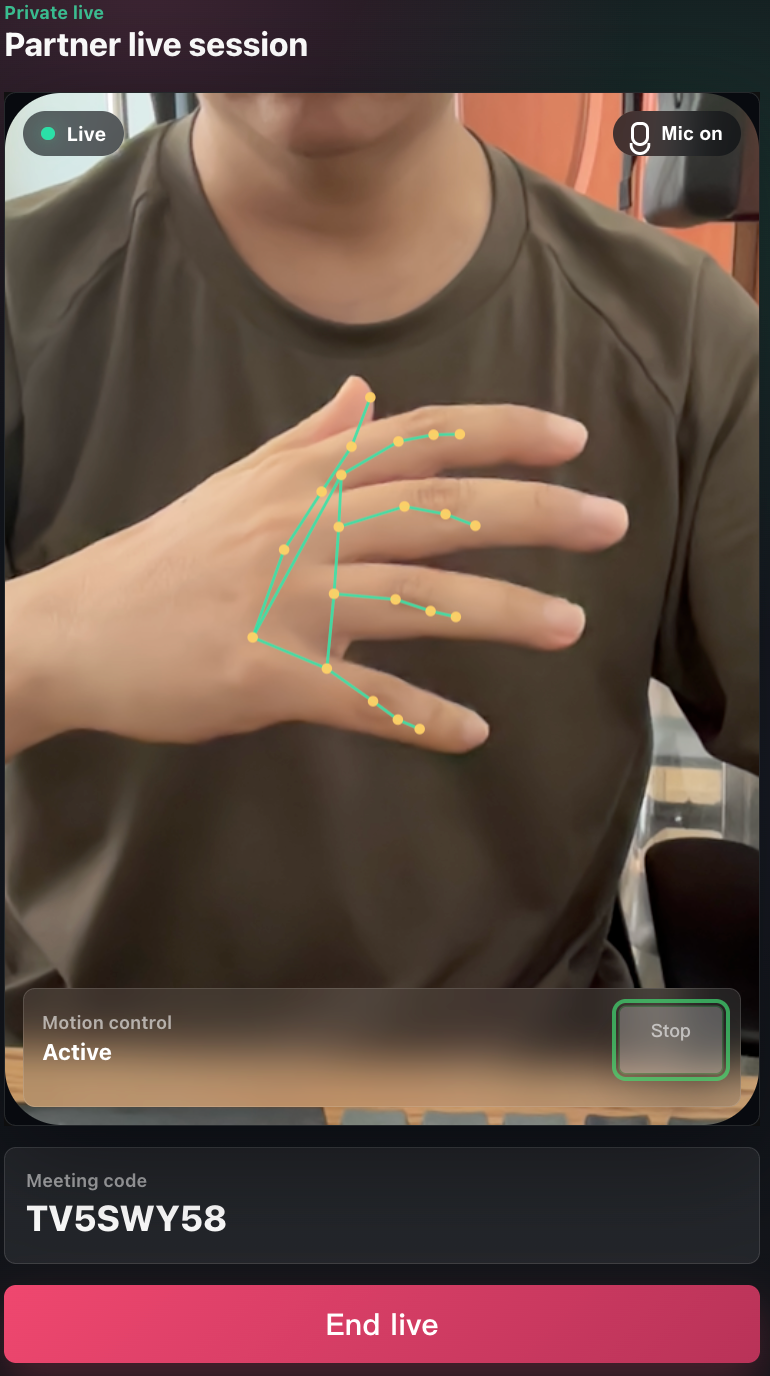
On the partner side, the partner can turn on the camera and enable video analysis and control. When motion control is enabled, Pulsar's AI analyzes visual signals from the live session, including:
- body movement
- hand gestures
- interaction patterns
- engagement dynamics
The system continuously generates motion commands according to the partner's live interaction.
4. Experience Adaptive Synchronization
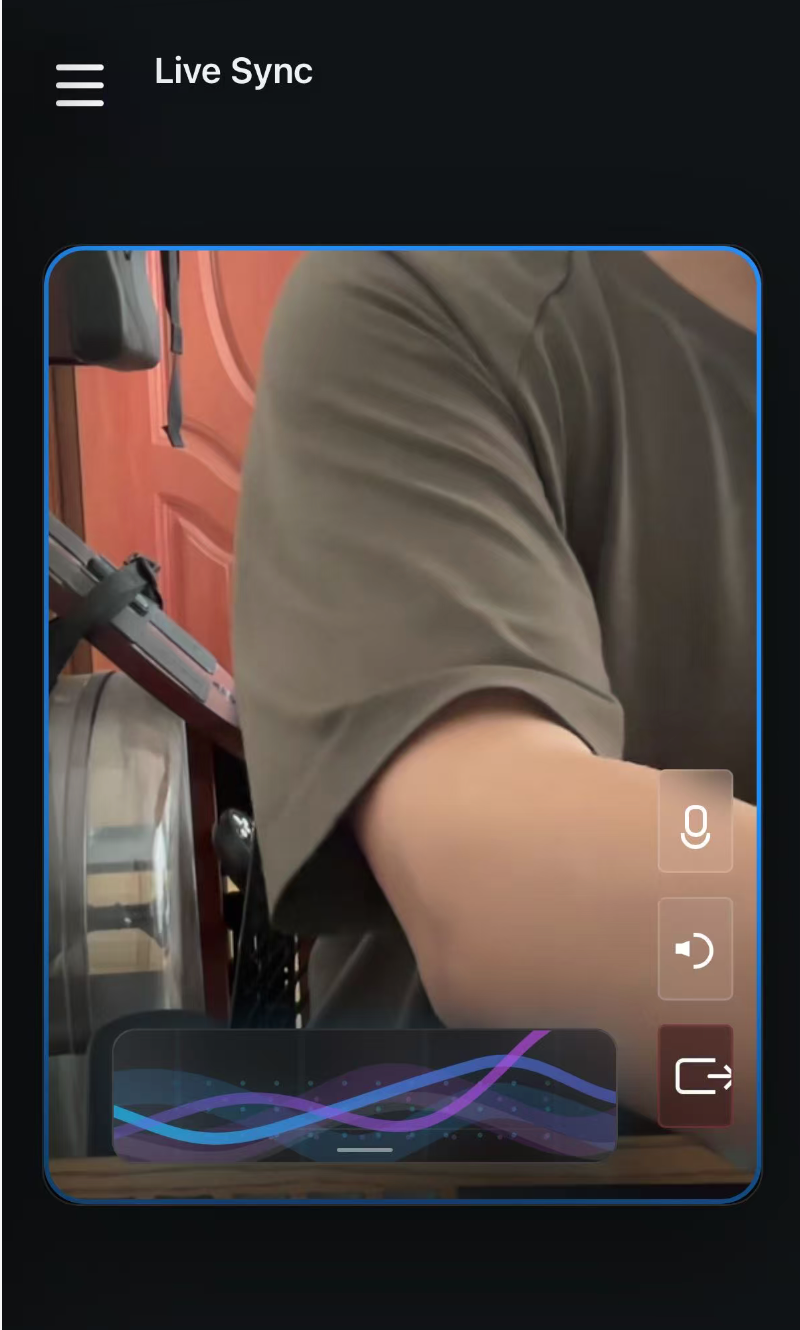
On the device user's side, Pulsar receives the motion commands sent through the live session and applies them to the connected device.
Live Sync does not follow a fixed script. Motion evolves in real time based on what is happening during the call, helping the session feel responsive and shared.
Every session becomes unique.
Session Roles
The device user joins from the Pulsar app, keeps the device connected, watches the partner's video, and receives the motion commands generated during the live session.
The invited partner joins from the private link, opens the camera, and can enable video analysis and control. Their movement and interaction can guide the adaptive motion experience when motion control is enabled.
Suggested Next Step
Connect the device first, then enter Live Sync from the main screen.