Device Wi-Fi Setup and Token
Before using the web app, the device must be connected to the internet through Wi-Fi. If the device has already been configured, it should reconnect to Wi-Fi automatically when powered on.
If the device has not been configured yet, follow the steps below. You will also see the device token at the end of the setup flow.
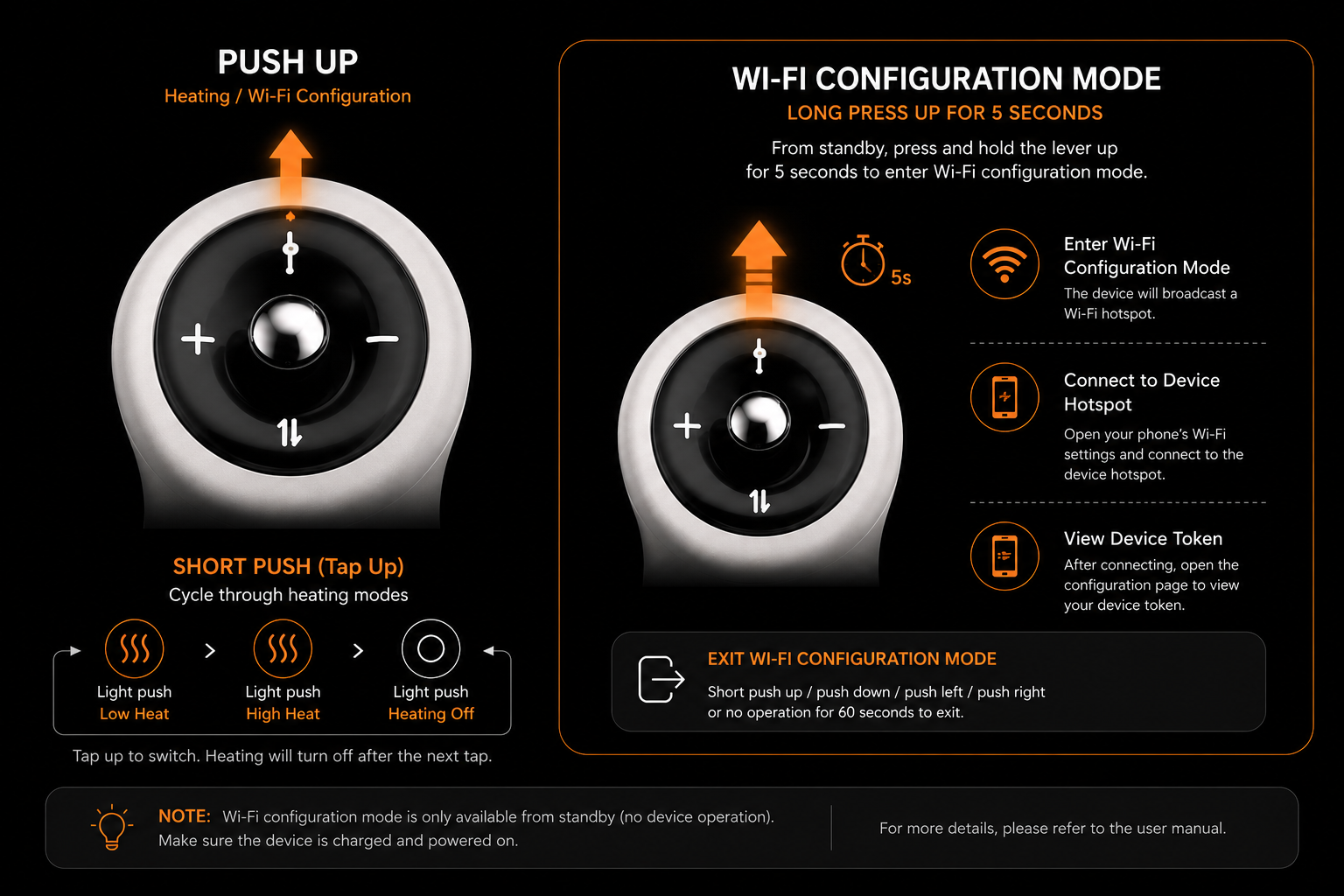
1. Start Wi-Fi Configuration Mode
Press and hold the Up button for 5 seconds, until the light flashes quickly.
2. Connect to the Device Hotspot
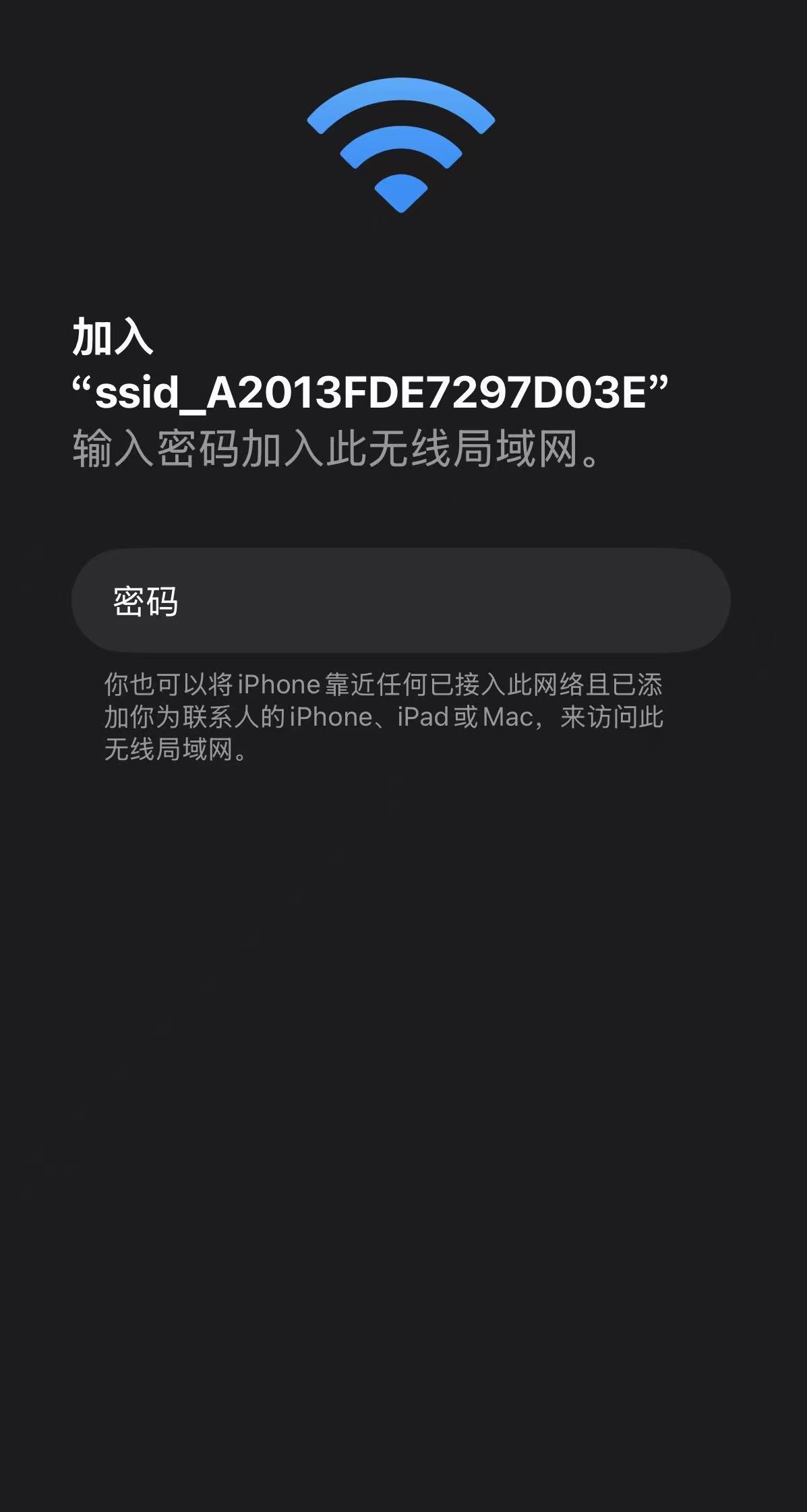
On your phone or PC, open the Wi-Fi network list and connect to the device hotspot named ssid_xxxx.
Enter the password 12345678 when prompted.
3. Configure the Device Wi-Fi
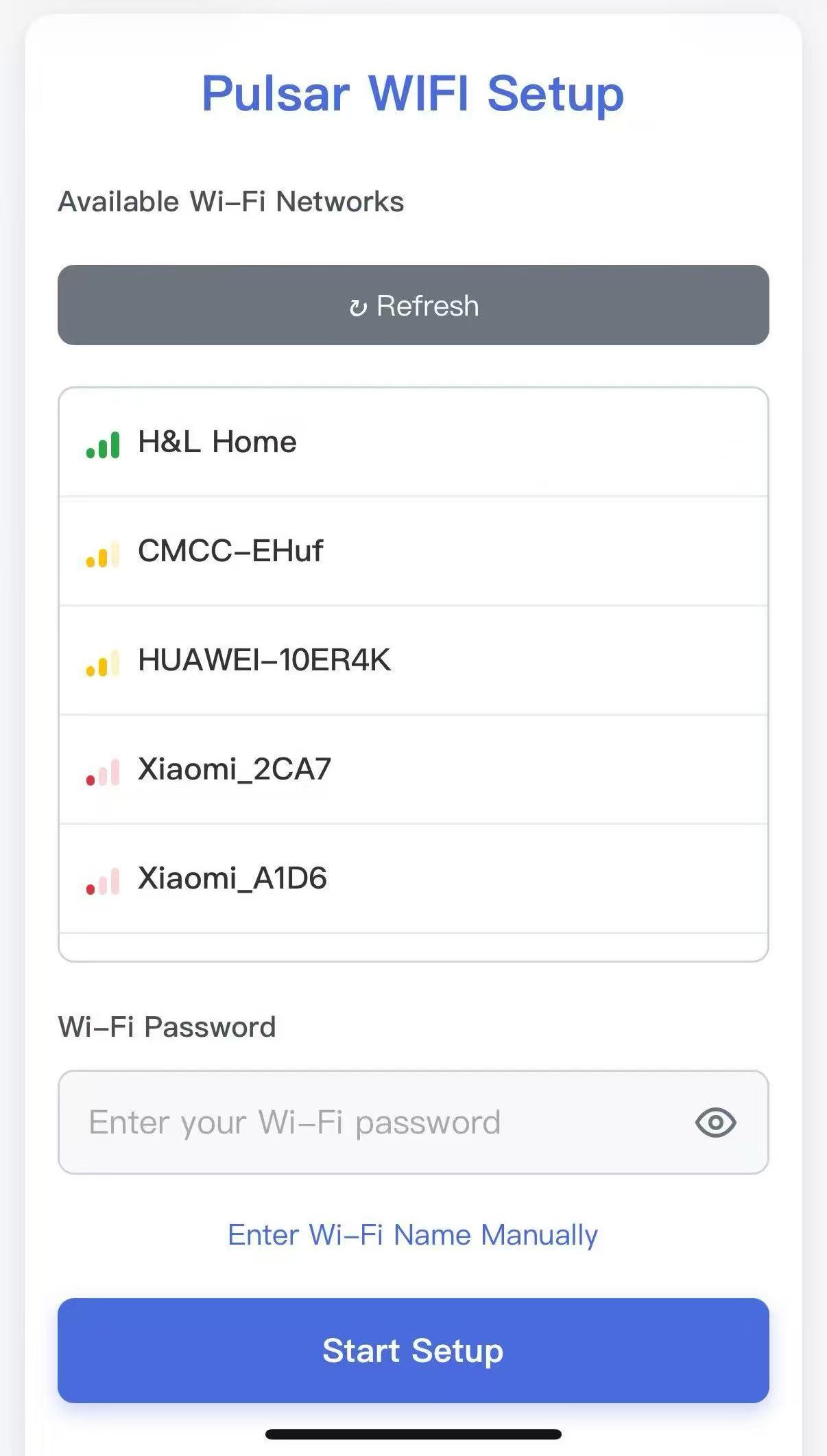
After connecting to the device hotspot, the device Wi-Fi setup page should open automatically.
If it does not open, open http://192.168.4.1 in your browser.
Choose the Wi-Fi network that you want the device to use. Make sure this Wi-Fi network can access the internet.
Enter the Wi-Fi password, then tap Start setup.
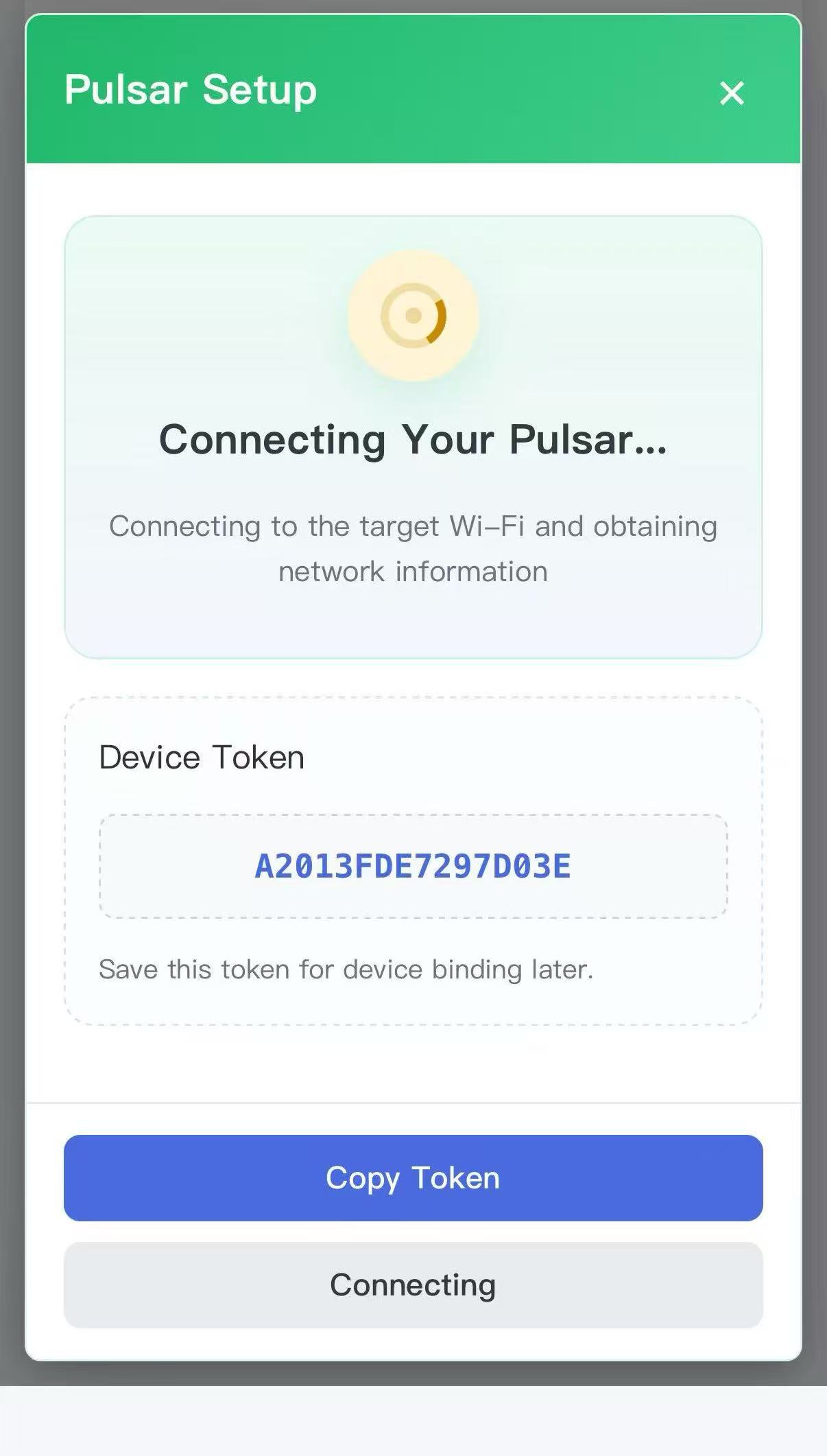
4. Record the Device Token
The device will try to connect to Wi-Fi and the internet. When the setup page shows the device token, record it.
You will use this token to connect and control the device from the web app.
Video Walkthrough
Next Step
After the device is online and you have the token, continue to Quick Start.