Quick Start
This page explains the shortest path from opening the web app to entering the main product screen. The product does not require an app download or a traditional email-and-password login. Access starts with a device token.
Before You Start
Make sure the device is connected to the internet through Wi-Fi. If the device has already been configured, it should reconnect automatically. If it has not been configured yet, complete Wi-Fi setup and find the device token first.
See Device Wi-Fi Setup and Token for details.
1. Open the Web App
Open https://fun.getpulsar.io/ in your browser.
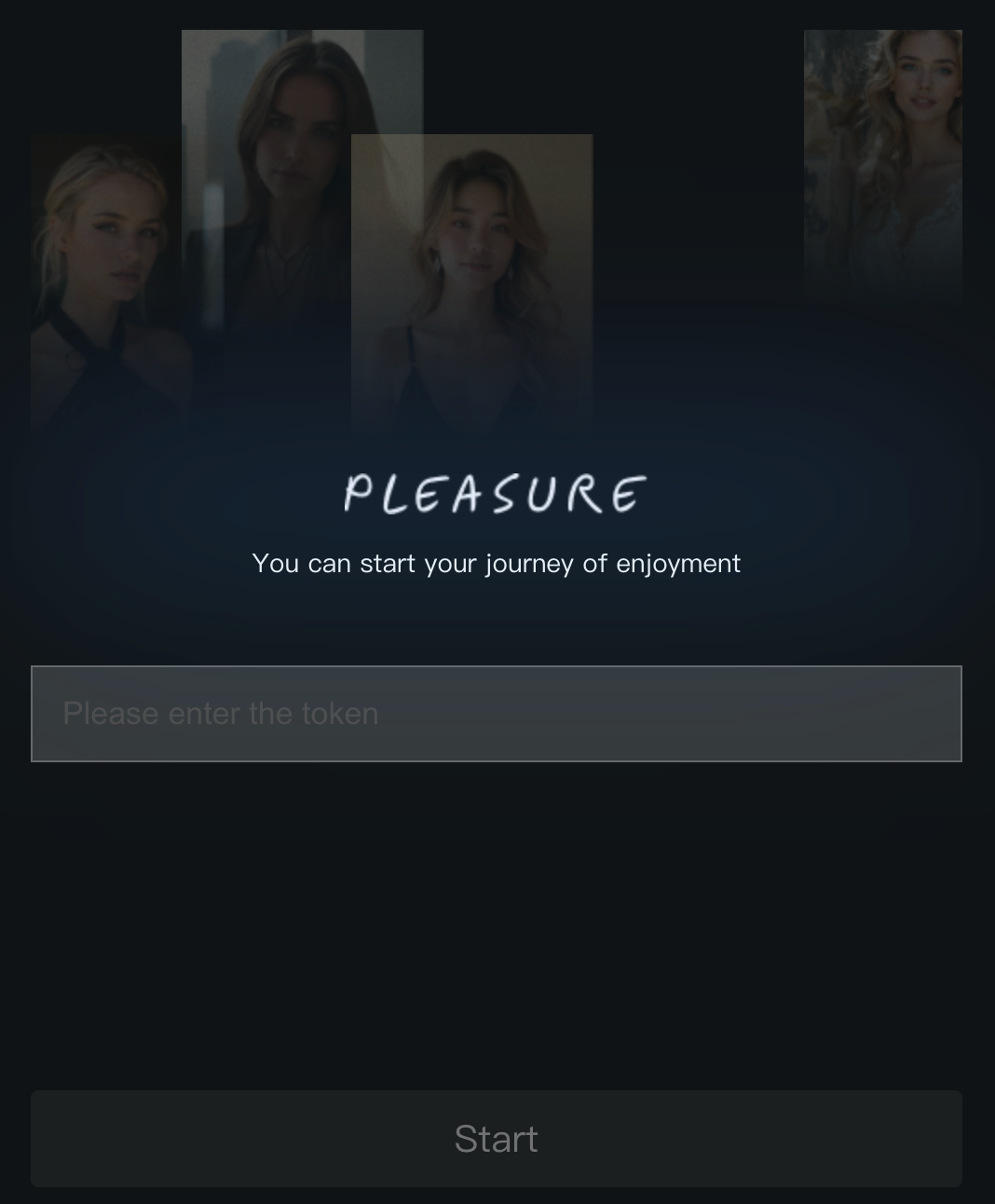
2. Enter the Device Token
Enter the token for your device, then tap Start.
If a token was previously used in the same browser, the page may show it automatically. Confirm the token is correct before tapping Start.
3. Enter the Main Screen
After the device connects successfully, the product opens the main screen.
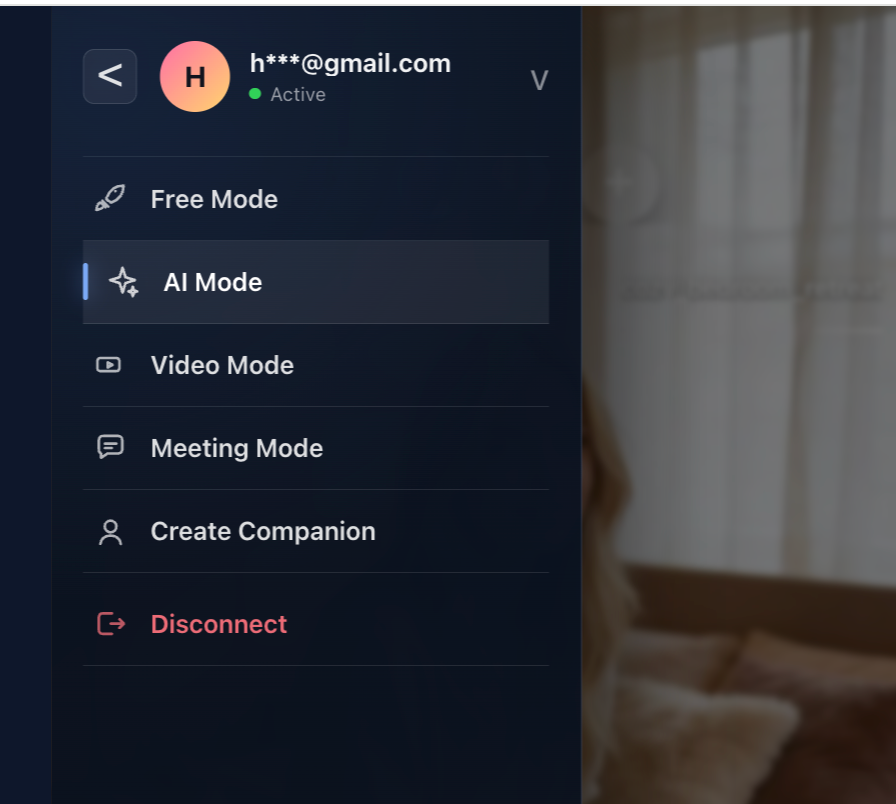
You can play with your device in four control modes:
AI Companion: interact with AI characters that can adapt to user preferences and control device movement.Free Control: control the device directly, or let a partner control it remotely.Video Sync: watch local or online videos while synchronizing device movement with the content.Live Sync: join a remote video call where a partner can influence device rhythm through real-time cues.
All modes use the system's machine-learning-based expert technique simulation system to control device movement and provide an optimized experience.
See Device Control Modes for a more detailed explanation of each mode.
The main screen also includes Create Companion, which opens the AI companion creation feature. See Create Companion for character creation details, or AI Companion for the control mode.
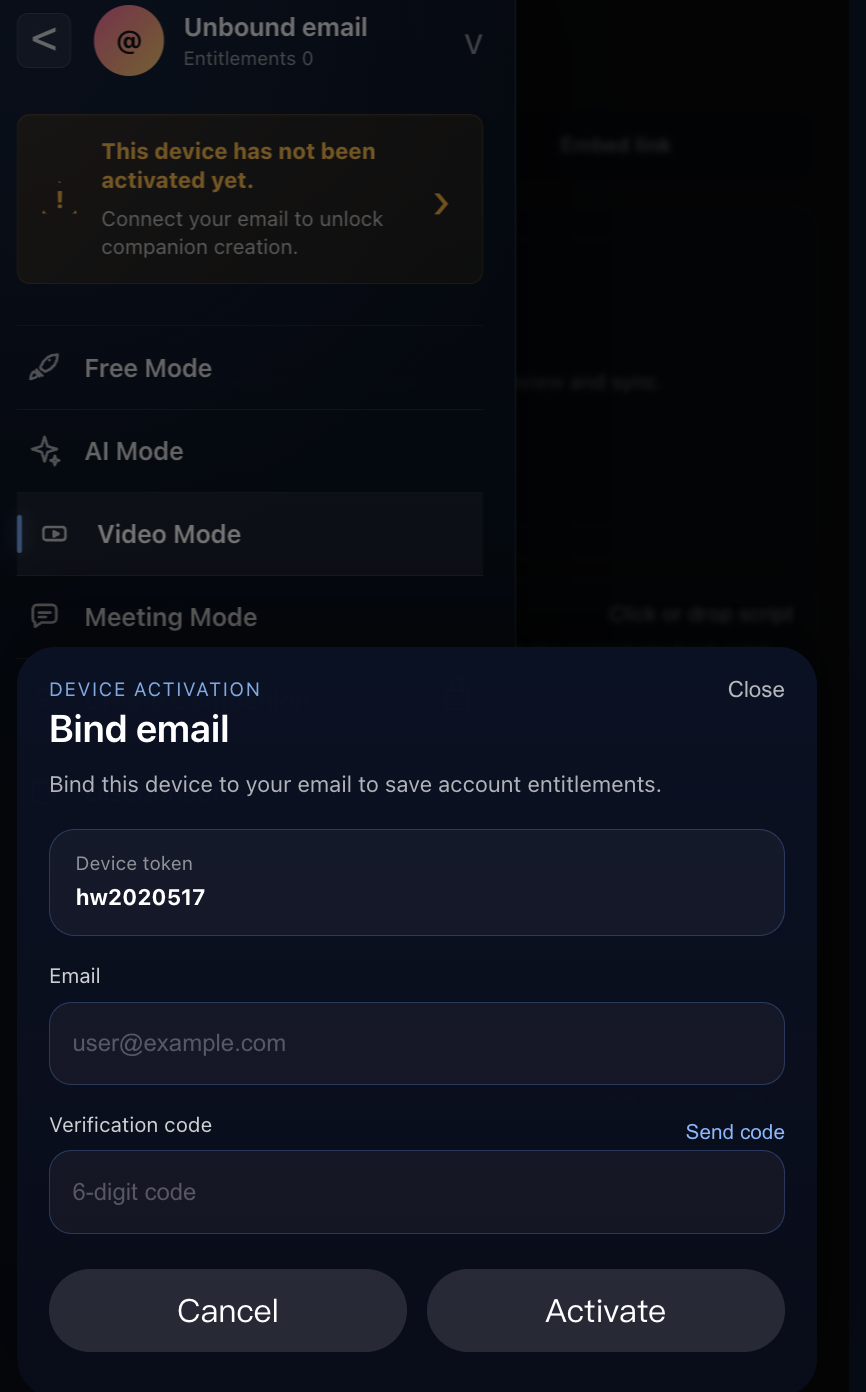
4. Optional: Activate Email
AI Companion requires the device to be bound to an email address. This is also called email activation.
After activation, custom AI companions and official recommended characters are associated with that email address, so they can follow the activated device entitlement. One email address can be bound to multiple devices. Email activation is not a traditional login flow and does not require a password.
5. Disconnect the Device
Open the menu and tap Disconnect to disconnect the web app from the current device.