AI Companion
AI Companion is the primary interactive experience of the product. In this mode, the user starts a session with an AI character. The character can talk with the user, respond during the session, and drive device movement at the same time.
The movement rhythm is not a fixed pattern. The system combines the selected AI character's personality settings with what it has learned from the user's previous sessions. As the user continues using the product, the AI character remembers and learns from interaction history, preferences, and saved context. This helps the system choose more suitable rhythm, pacing, and intensity for a deeper immersive experience.
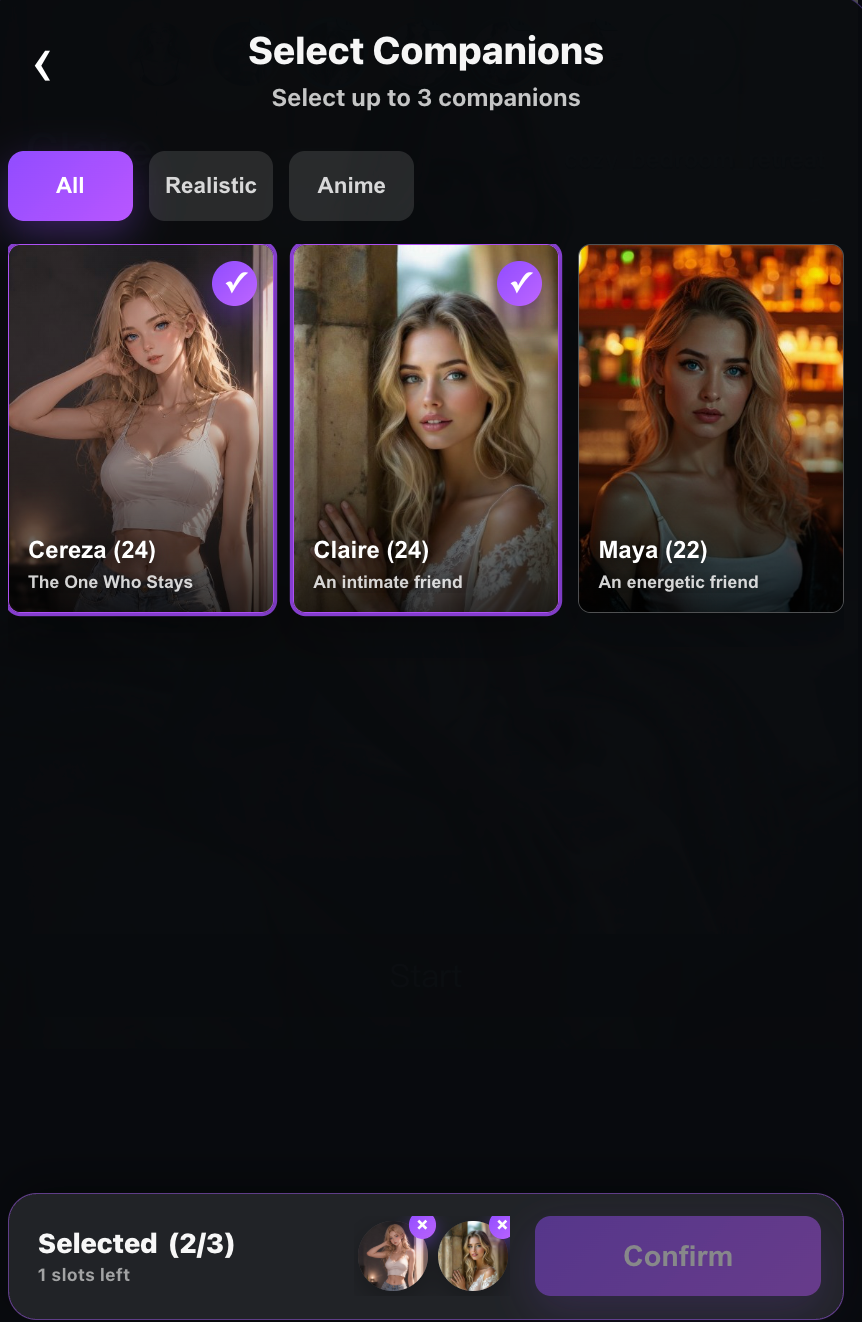
Users can choose from official recommended characters or create their own custom characters. Official characters are ready to use, while custom characters let the user define a more personal companion style.
By default, when using the included non-subscription entitlement, the user can select up to 3 official recommended characters and create up to 2 custom characters.
1. Enter AI Companion
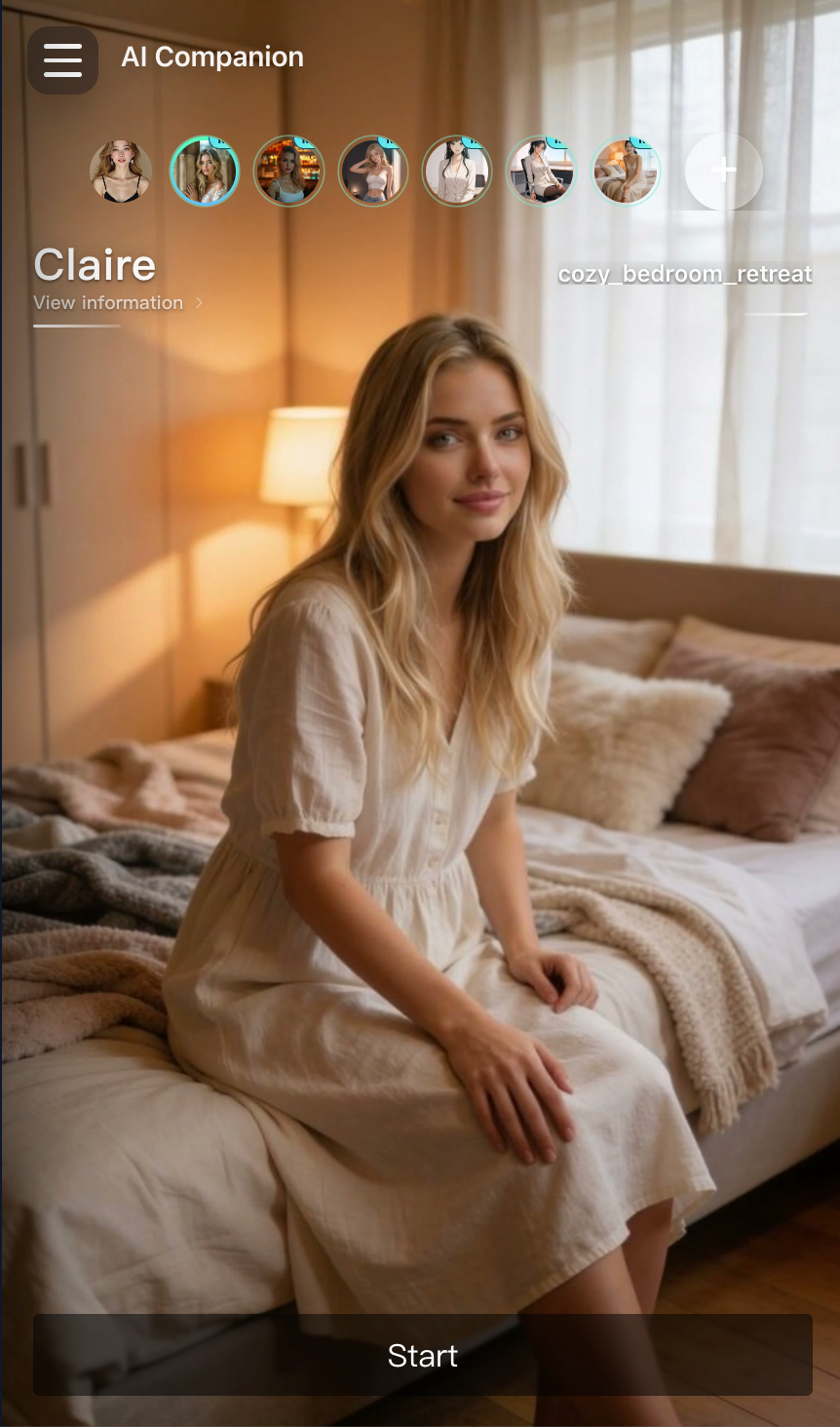
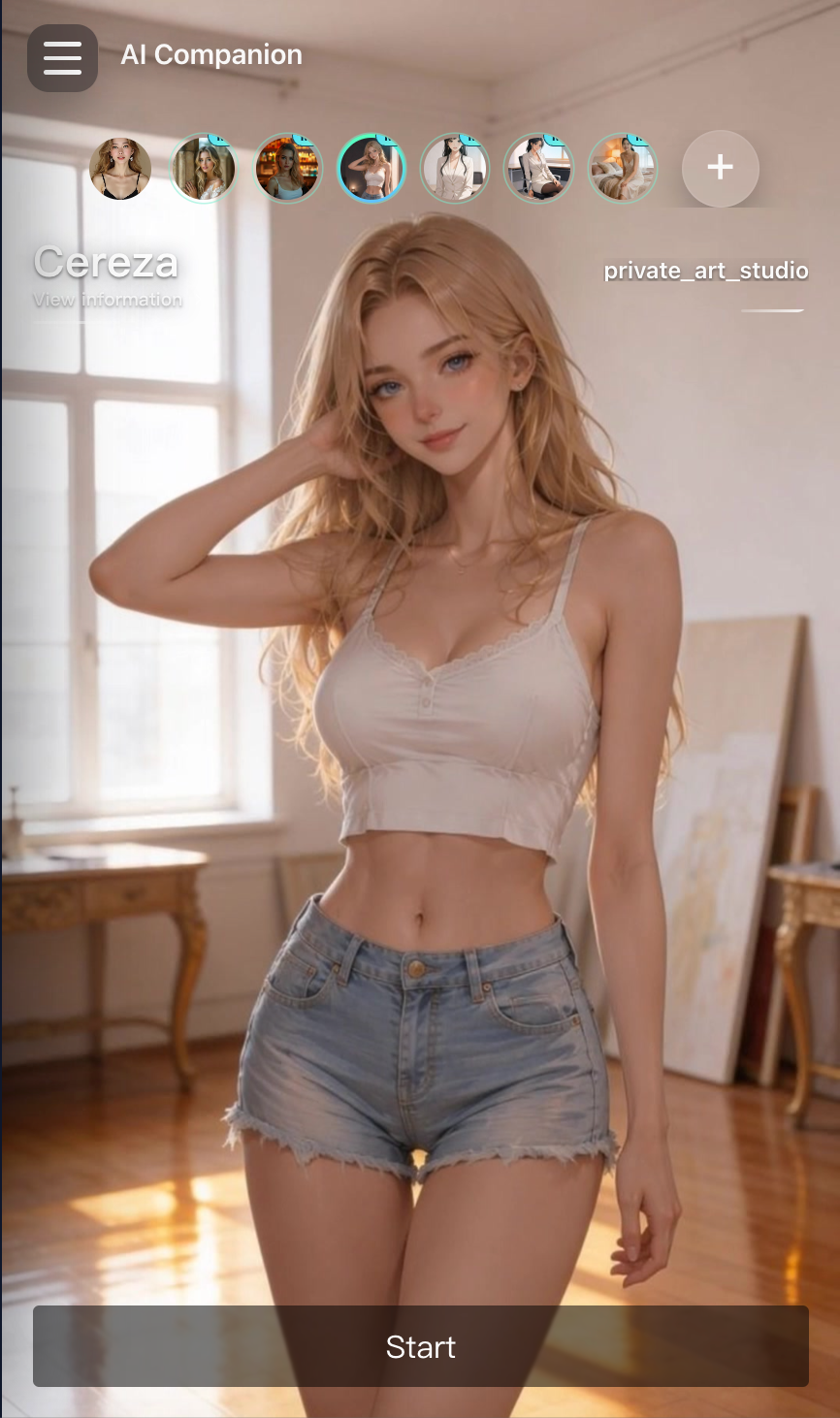
After the device connects, enter AI Companion from the main screen. The AI Companion screen shows the currently selected character, available character shortcuts, the current scene, and the session start action.
2. Choose Characters and Scenes
Users can choose characters with different styles, personalities, and visual presentations. Characters come from two sources: the official recommended character pool and the user's custom character pool.
For more details, see Official Recommended Characters and Create an AI Character.
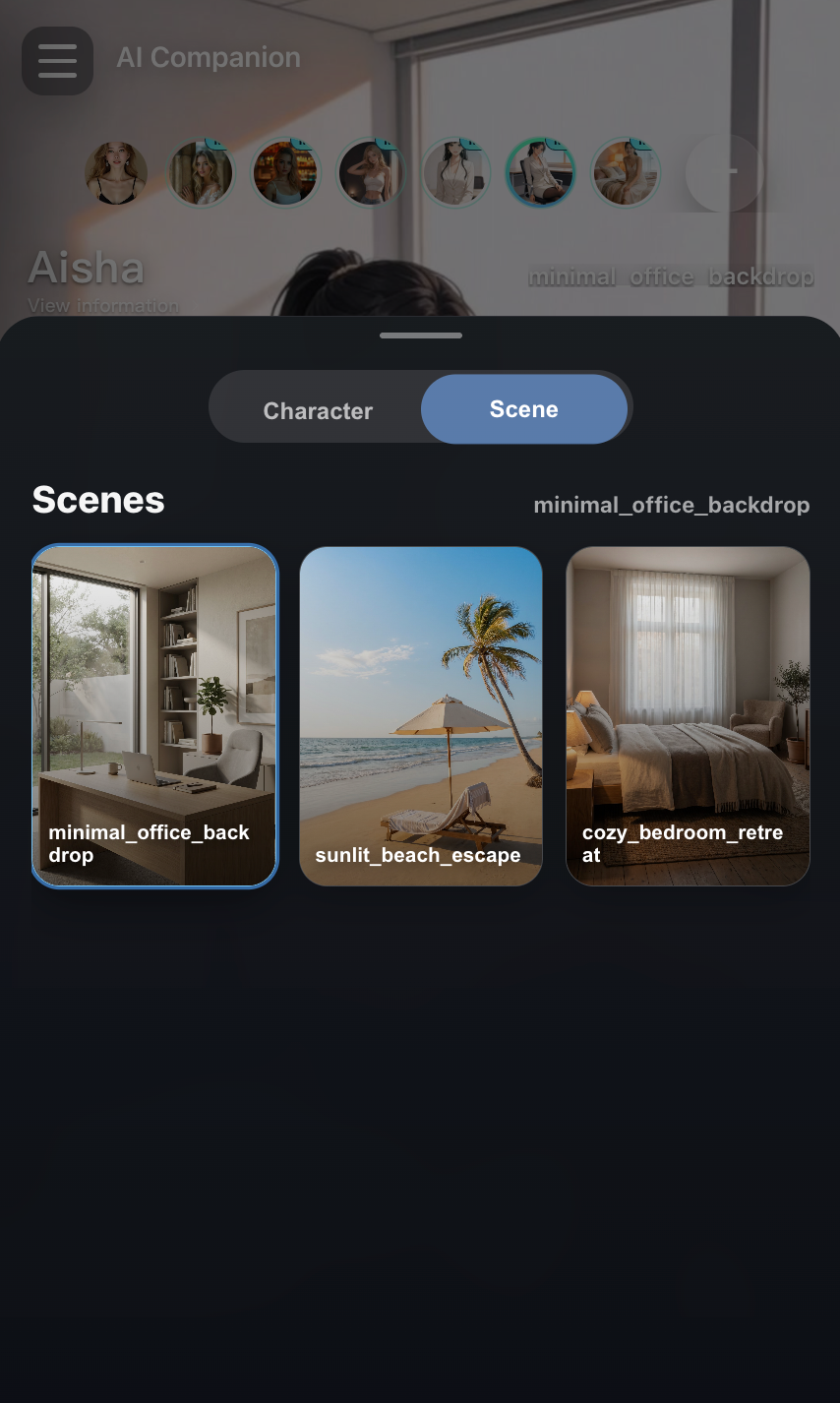
Users can also choose a scene for the session. The scene helps set the visual context for the interaction, and different scenes can support different moods and companion styles.
AI characters will continue to learn and adapt to the user's preferences based on usage history. The character visual styles, including clothing, interactive actions, and presentation details, will also continue to expand over time.
3. Start a Session
After choosing the character and scene, tap Start to begin the session. The AI character enters the interactive session and starts responding in context.
4. Interact While the Device Rhythm Is Controlled
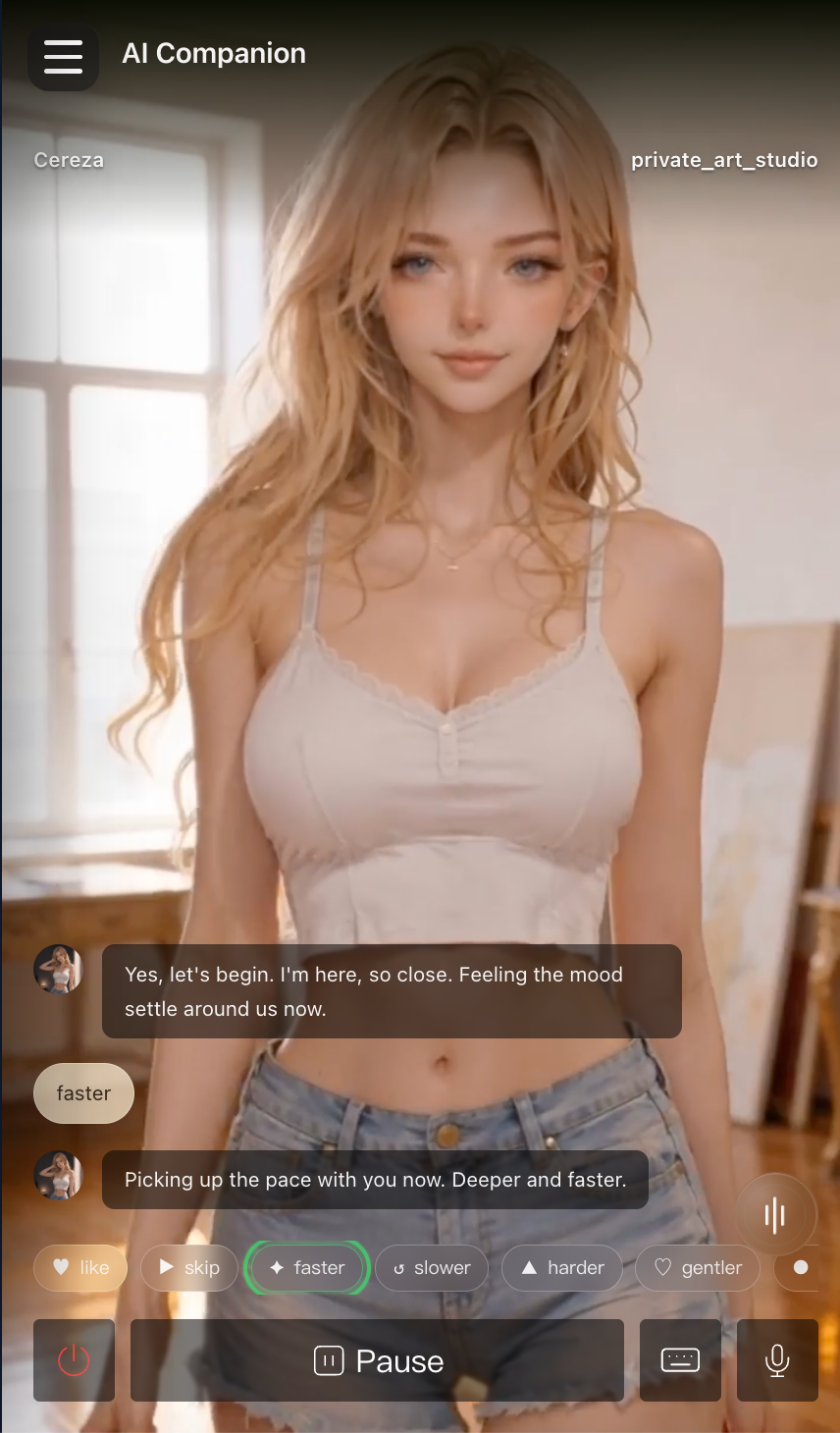
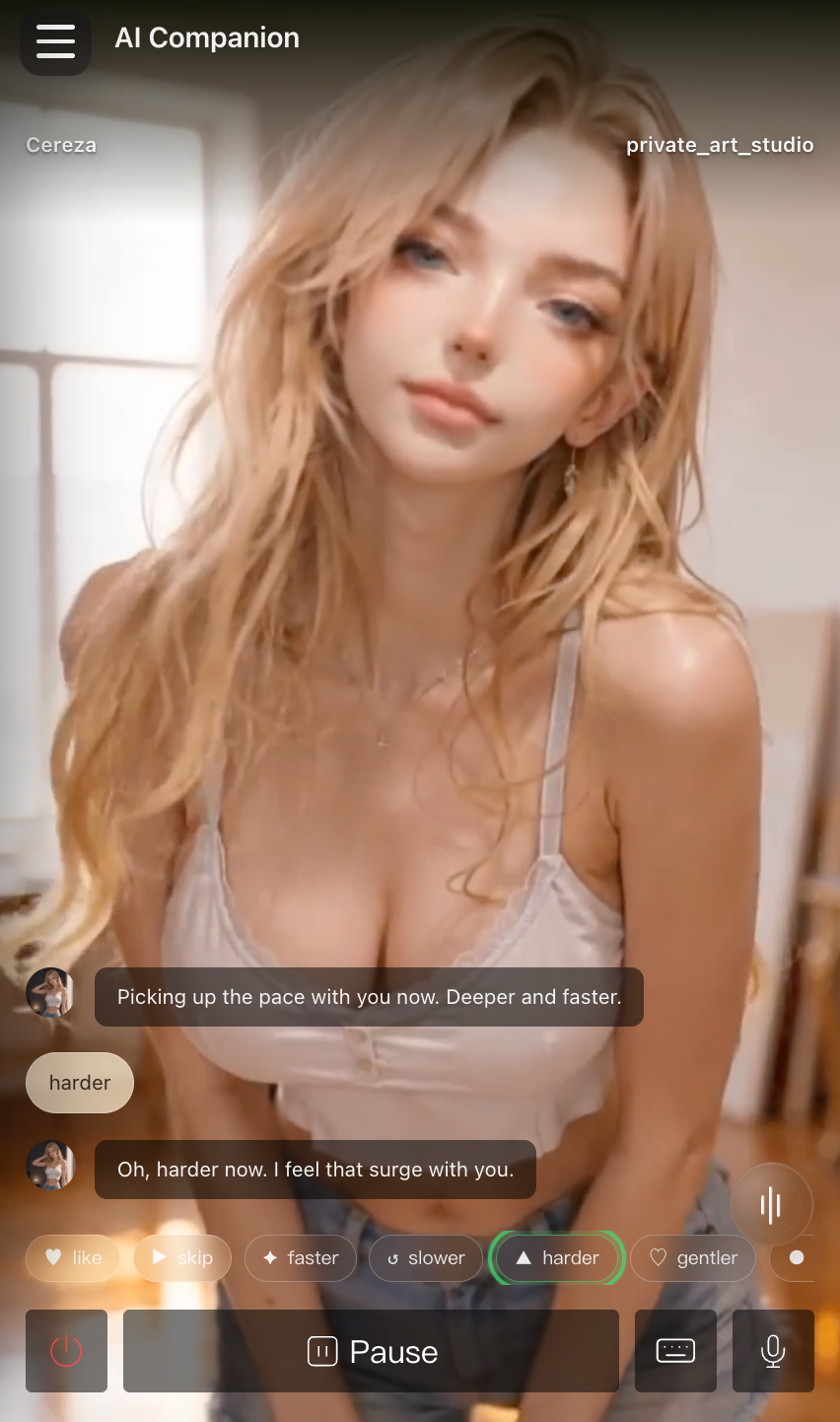
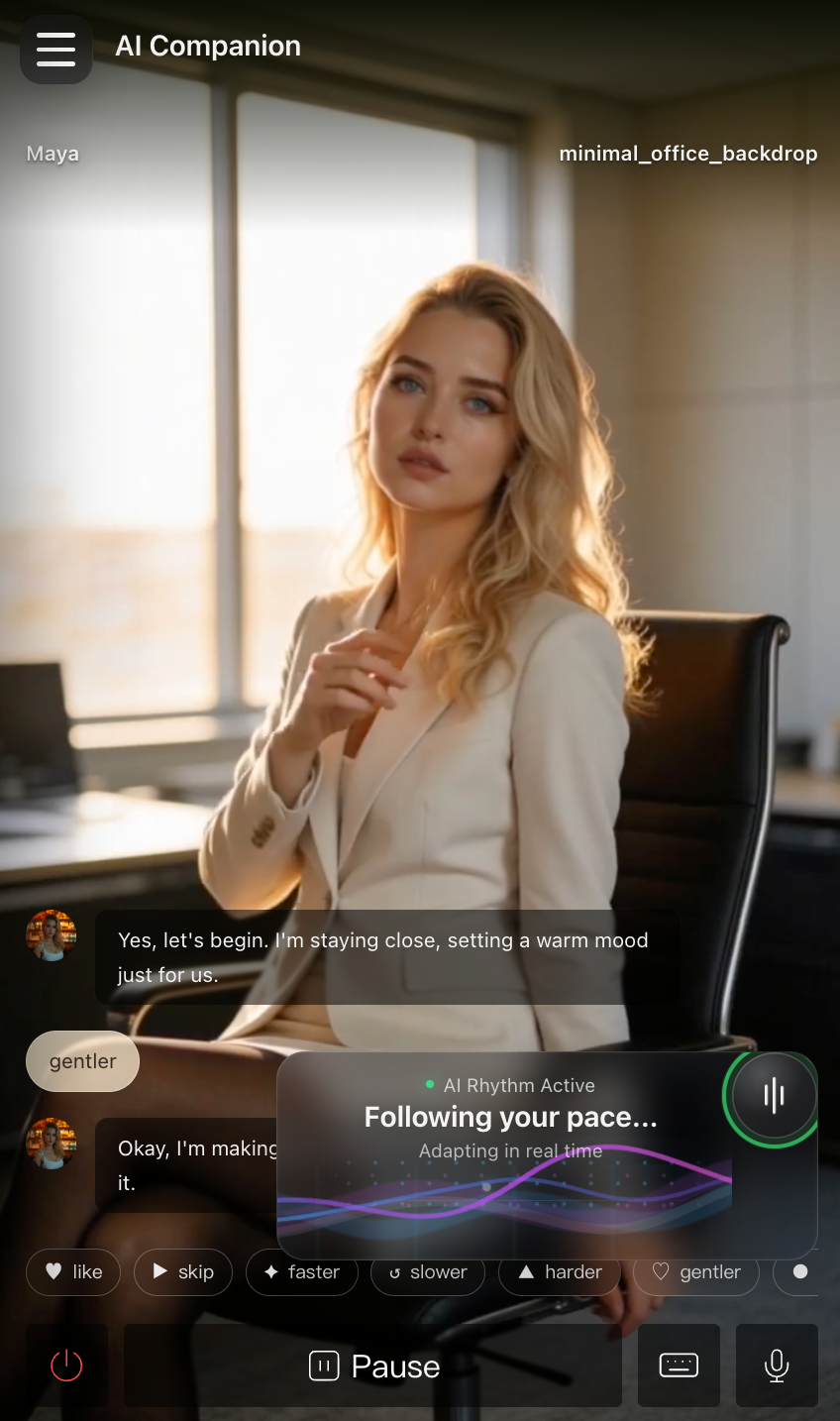
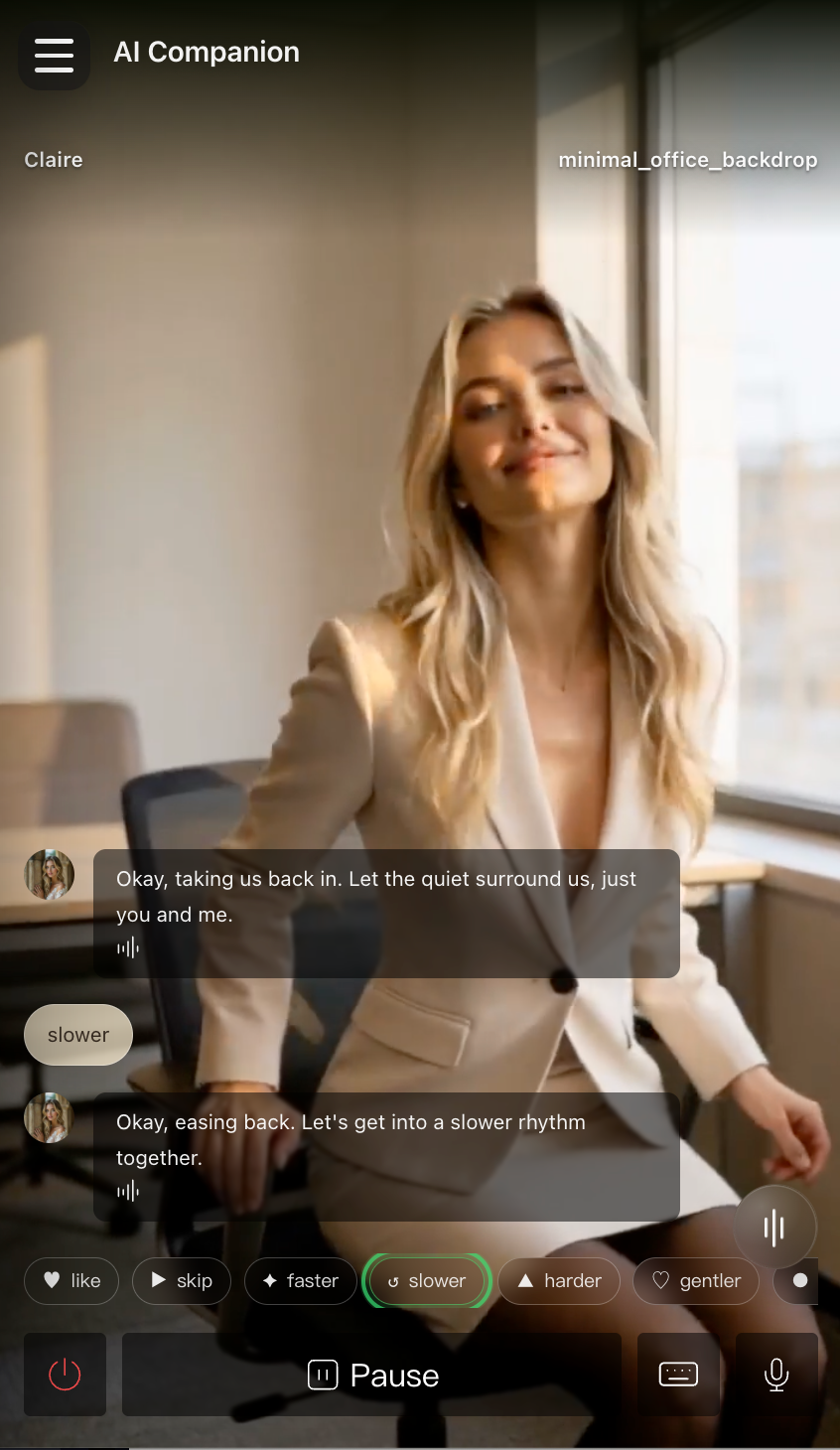
During the session, the AI character can talk with the user and perform actions while the system controls the device rhythm. The rhythm is selected according to the character setting, the current interaction, and what the AI has learned about the user's preferences.
5. Continue Using AI Companion
As the user continues using AI Companion, the AI character remembers and learns from previous sessions. This makes future interactions more adaptive and helps the system choose more suitable rhythm, pacing, and intensity.